Step 1Operations Home
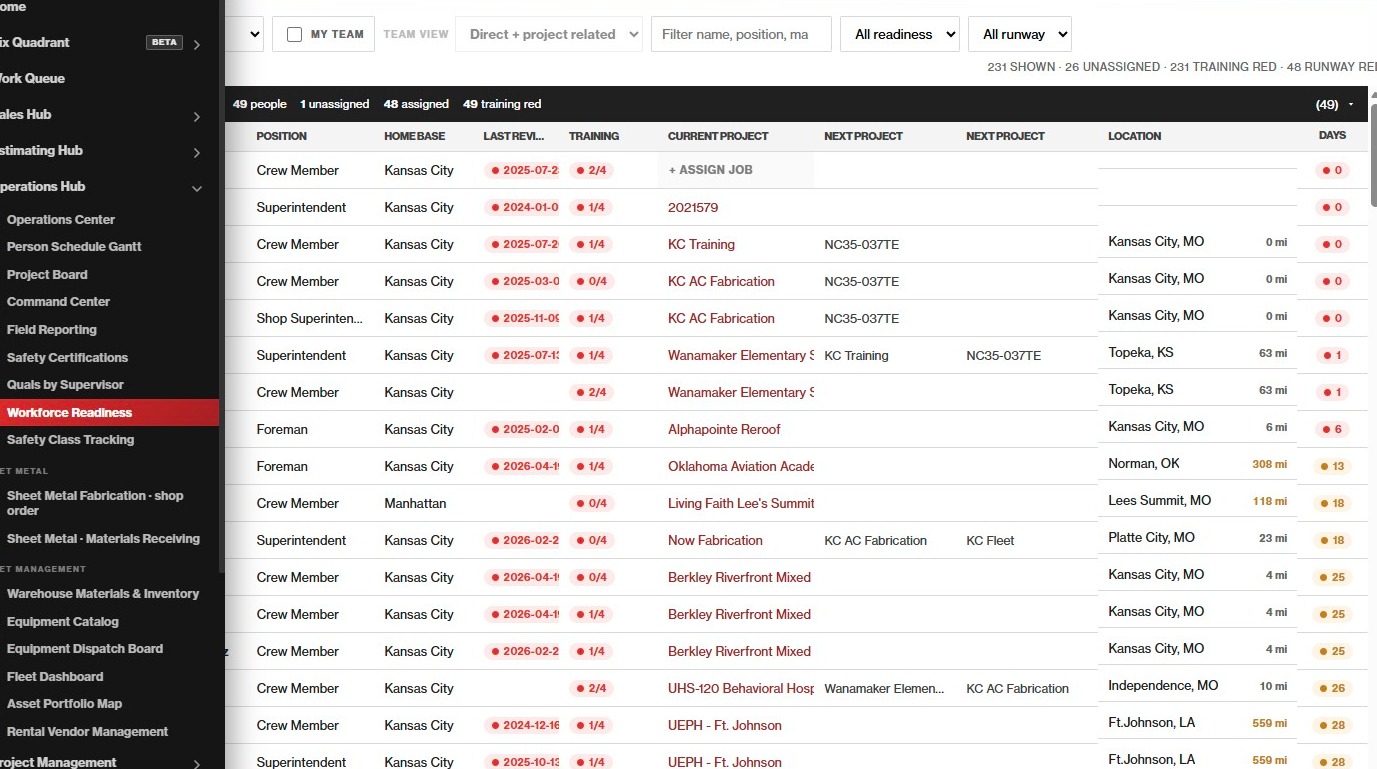
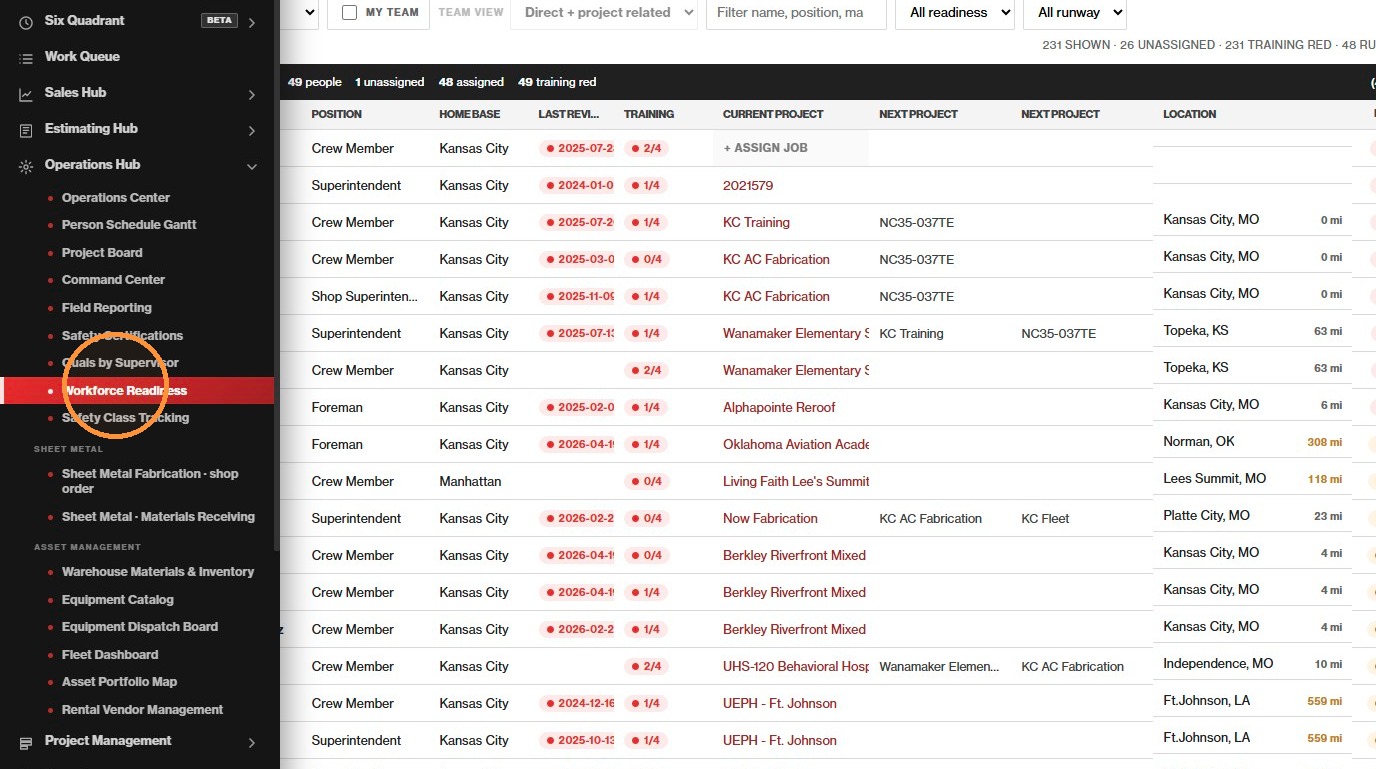
Open the Ops nav and select Workforce Readiness (or use the deep link above).
Step 2Open the boards
Click Workforce Readiness to load the five-tab ops cockpit.
Complete the Guided Walkthrough
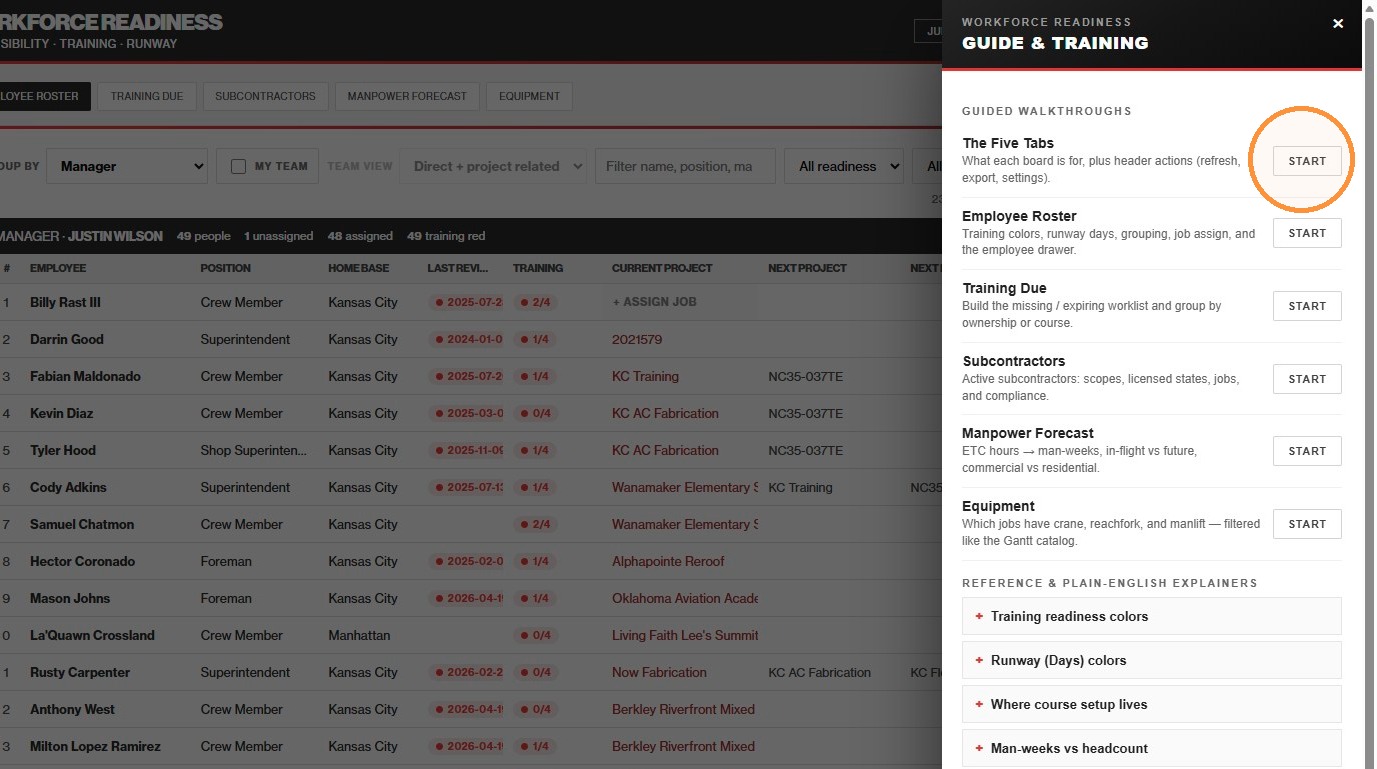
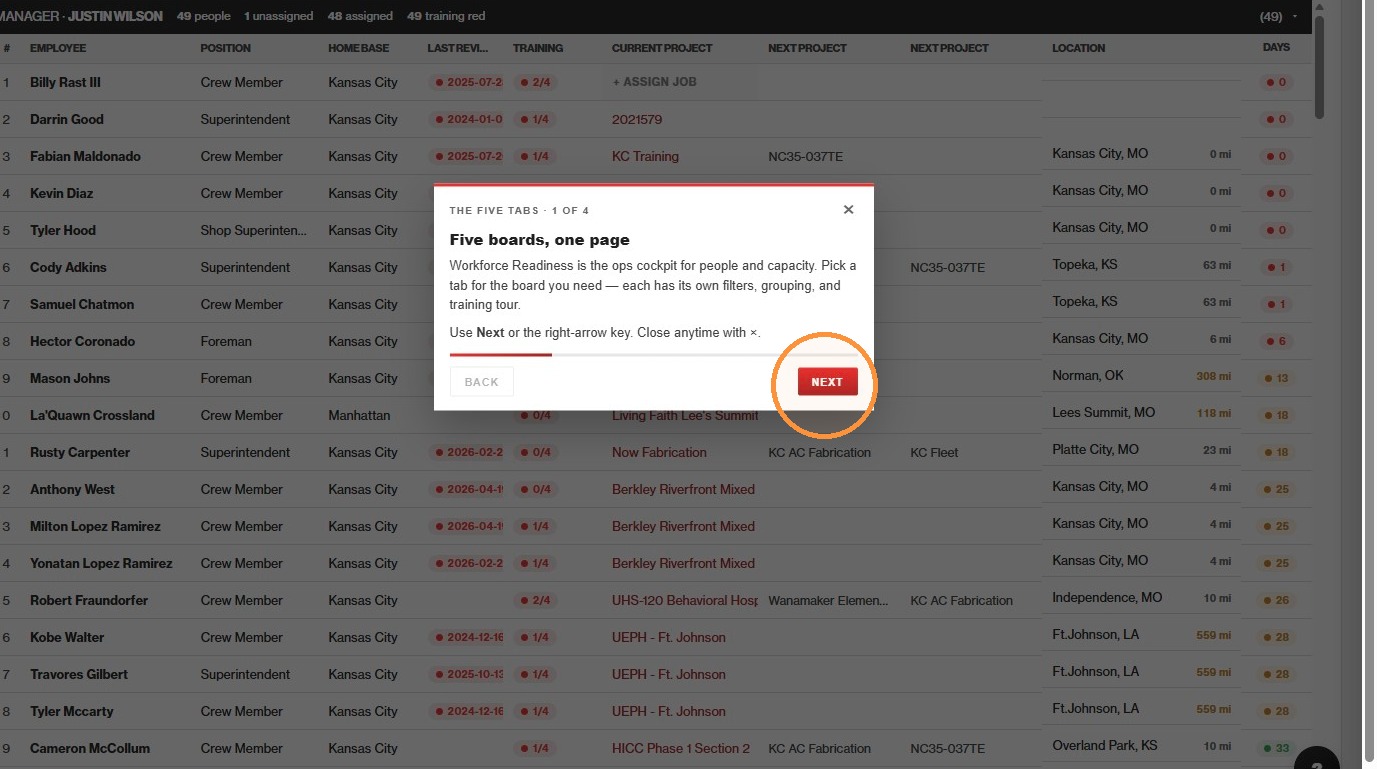
Guide & Training (Guide Me) walks you through the header and each board.
3
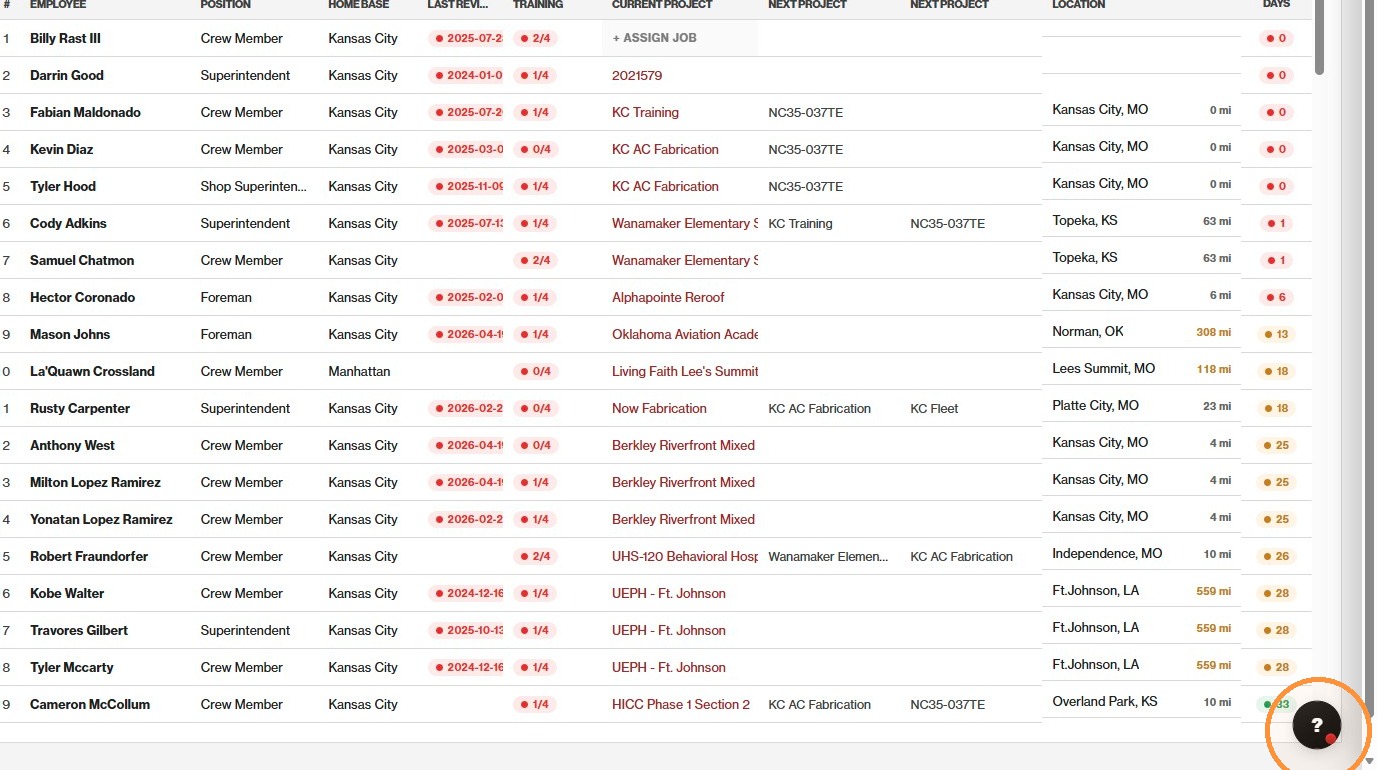
Click the Help button (?) in the bottom-right corner to open Guide & Training.
4
Click Start on The Five Tabs walkthrough.
5
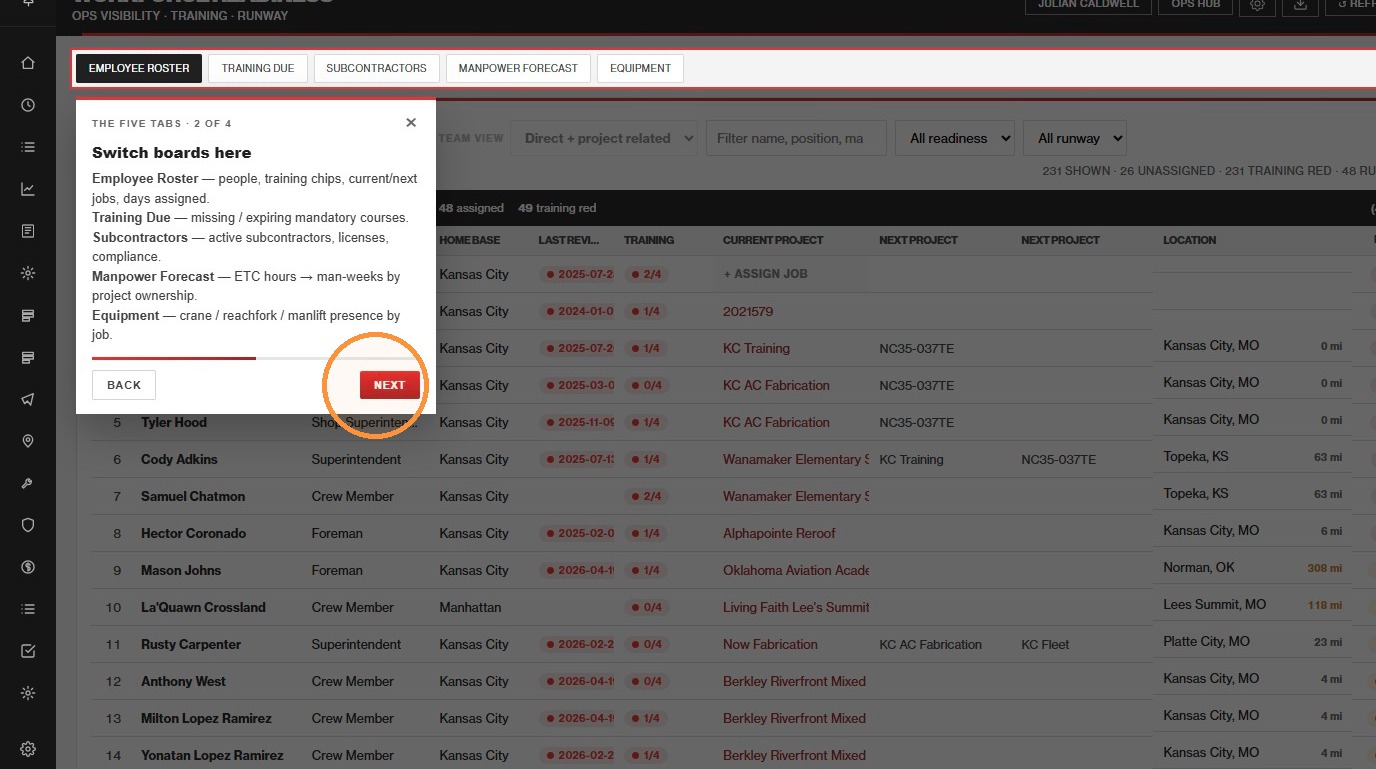
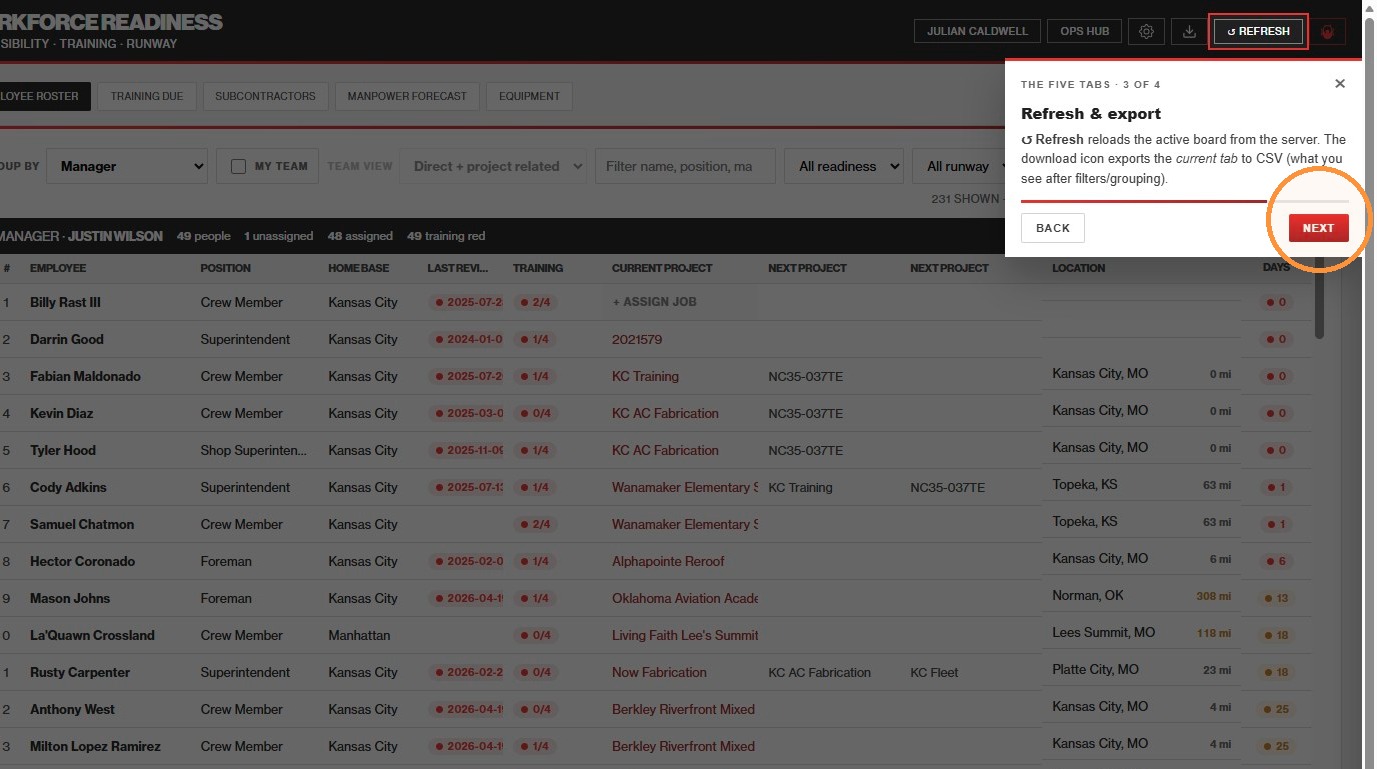
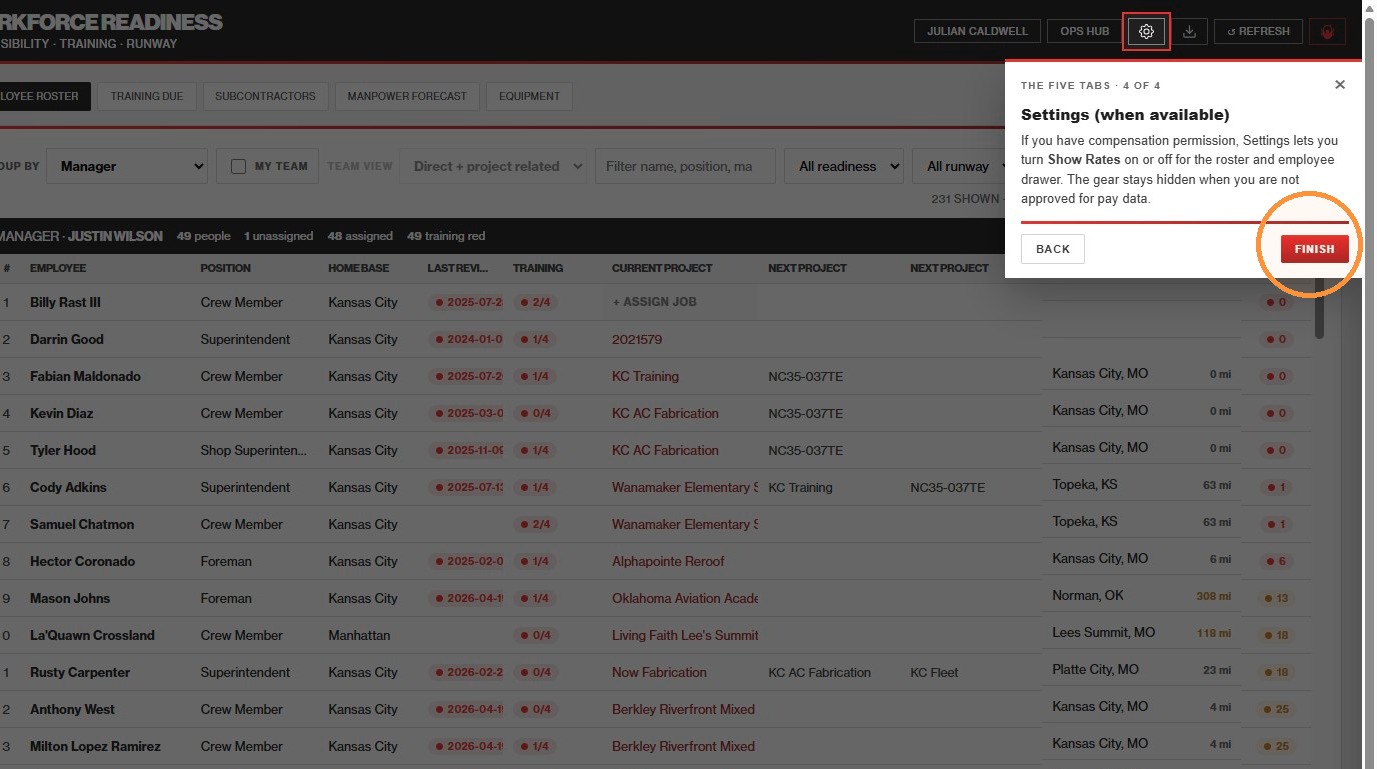
Click Next through each spotlight step (tabs, refresh/export, settings when available).
6
Click Finish when the tour ends. Replay anytime from the same ? panel.
Step 3Open Guide Me
The floating ? opens Guide & Training with walkthroughs and reference topics.
Step 4The Five Tabs
Start here for a short orientation of every board and the header actions.
Step 5Follow the spotlight
Use Next (or the right-arrow key). Close anytime with ×.
ContinueHeader actions
Refresh reloads the active board; the download icon exports the current tab to CSV.
ContinueSettings (when available)
Compensation-approved users can toggle Show Rates for the roster and employee drawer.
Step 6Finish
When done, reopen ? anytime for other board tours or this full help page.
Review the Employee Roster
Default board — people, training chips, runway days, and My team filtering.
7
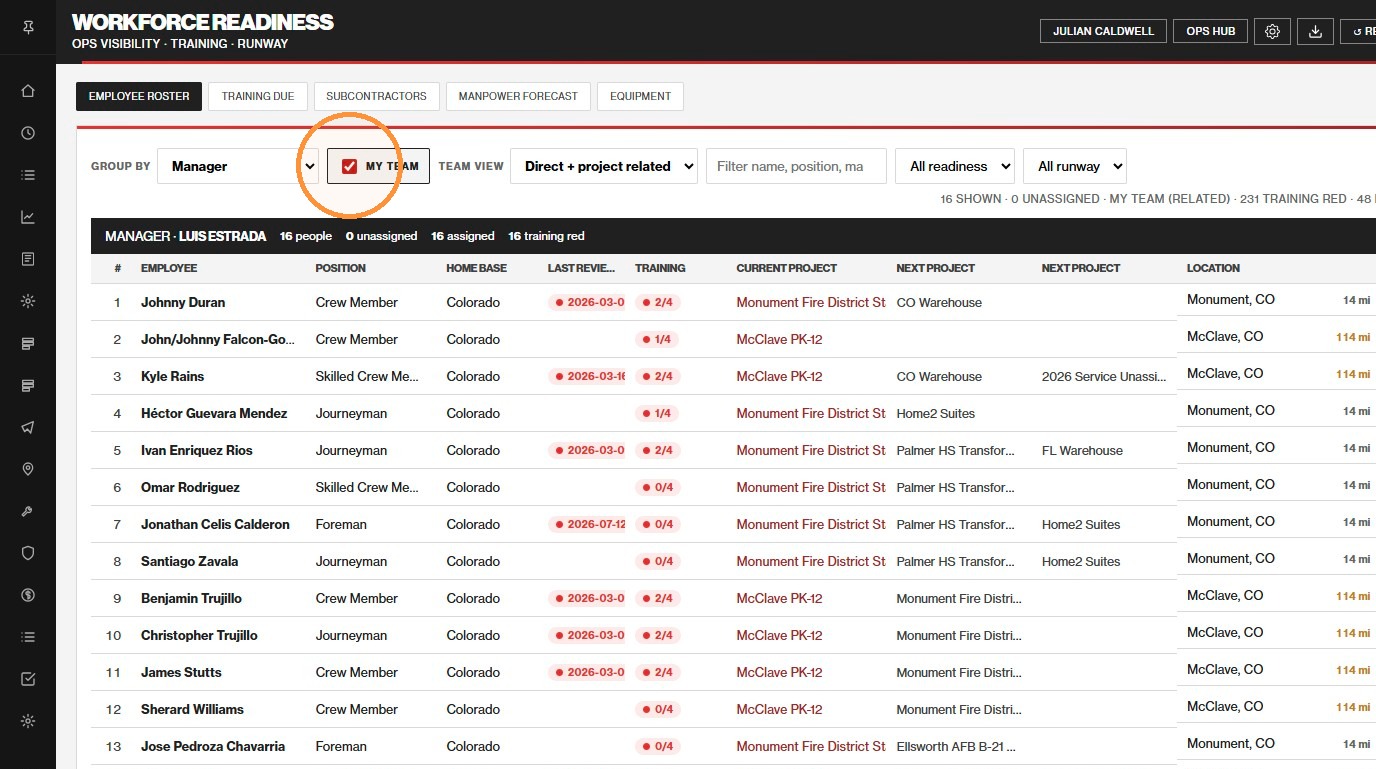
On Employee Roster, use My team to limit the list to your Bamboo direct reports, or (with Team view = Related) people on jobs you own as PEx / PM / Super / Foreman and crews on those same jobs. It will not pull another manager’s crew just because someone is dual-assigned elsewhere.
Step 7My team
Turn on My team, then choose Direct reports or Direct + project related under Team view. Related stays on jobs you own (or share with your directs) — it does not follow dual-assigned people onto other managers’ jobs.
Also useful: Group by Manager (default), Position, Branch, Project, ownership role, State, Readiness, or Runway. Filter readiness and runway colors from the toolbar dropdowns.
Assign Job
Put an unassigned person on an open Job Set Up position from the Employee Roster Current Project cell.
8
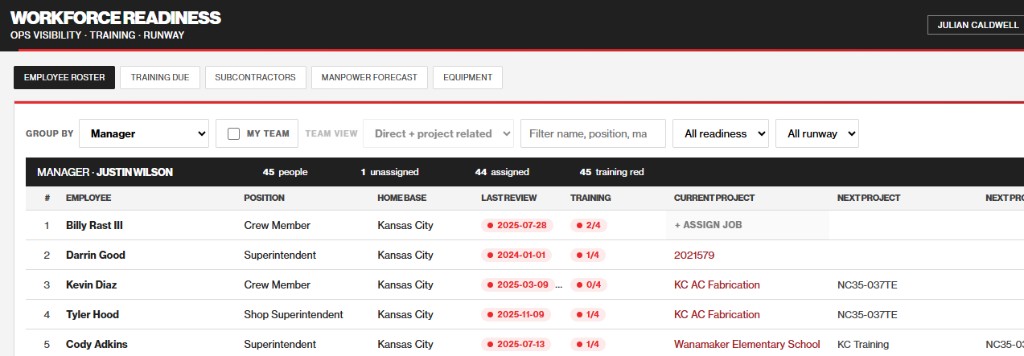
Stay on Employee Roster. Find someone with no current job — the Current Project cell shows + Assign job instead of a project name.
9
Click + Assign job (click anywhere in that cell). The Assign to job picker opens for that person and their role.
10
Filter by name, job code, or city if needed, then click an active job that has open slots matching their role (crew, foreman, superintendent, etc.). They are placed into that Job Set Up position.
11
To reassign someone who already has a job, click their red project name in Current Project (same picker). Use Unassign in the picker to clear them off a job first if they are at max concurrent jobs.
Steps 8–9+ Assign job
Empty Current Project cells show + Assign job. Click that cell — do not click the rest of the row (that opens the employee drawer). People already on a job show the project name in red; click it to reassign.
If the picker is empty: there are no open Job Set Up positions for that role on active jobs. Add an open slot on Job Set Up first, then return here.
Tip: Assigned vs unassigned counts on the manager group header (for example “1 unassigned · 44 assigned”) help you find people who still need a job.
Review the Other Workforce Boards
Switch tabs for training gaps, subcontractors, manpower backlog, and equipment.
12
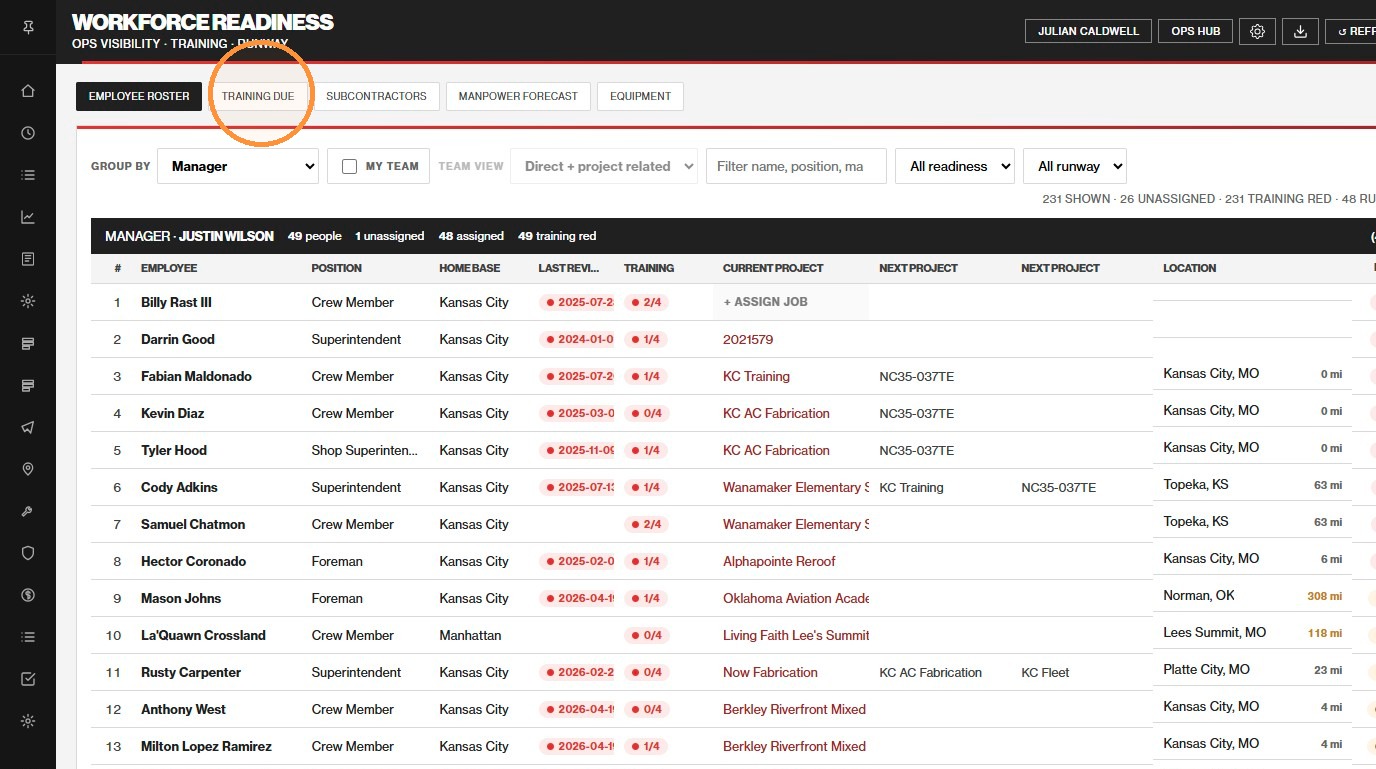
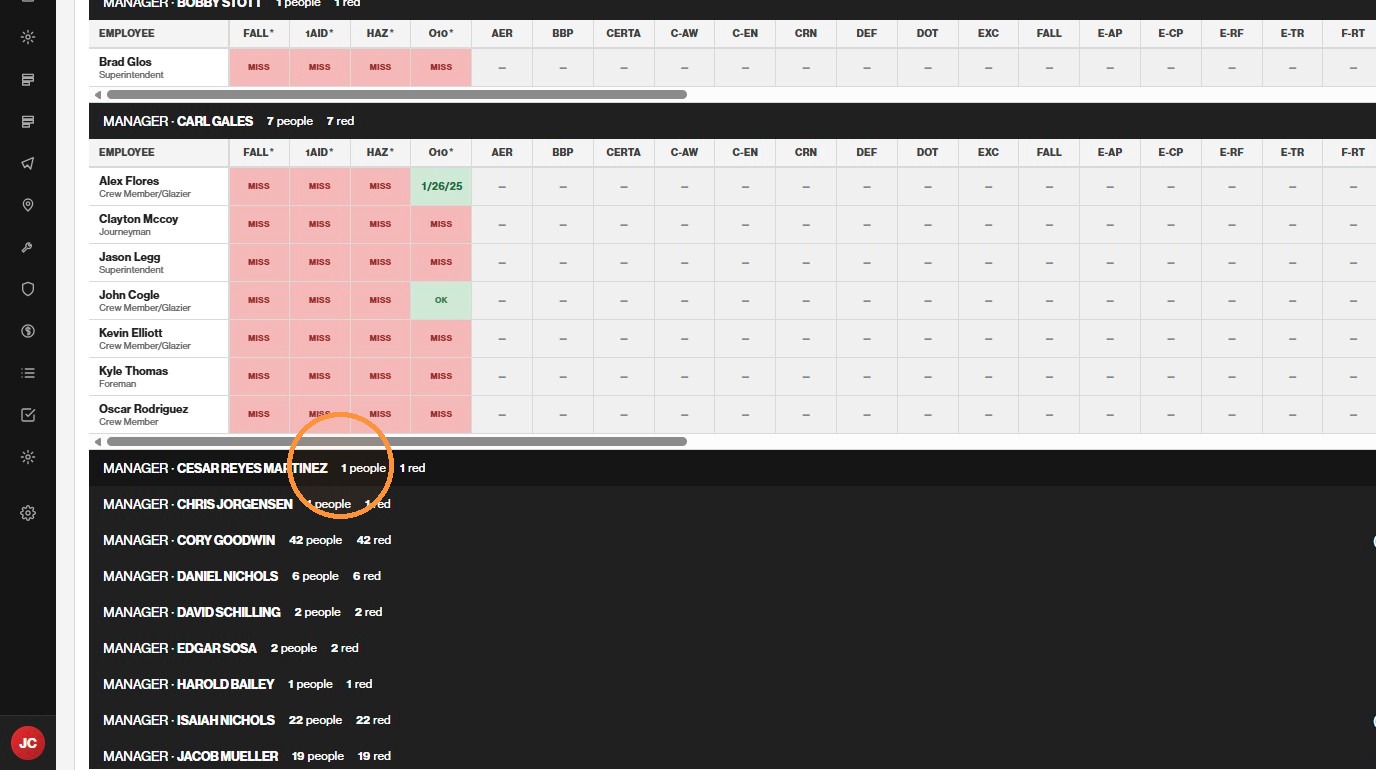
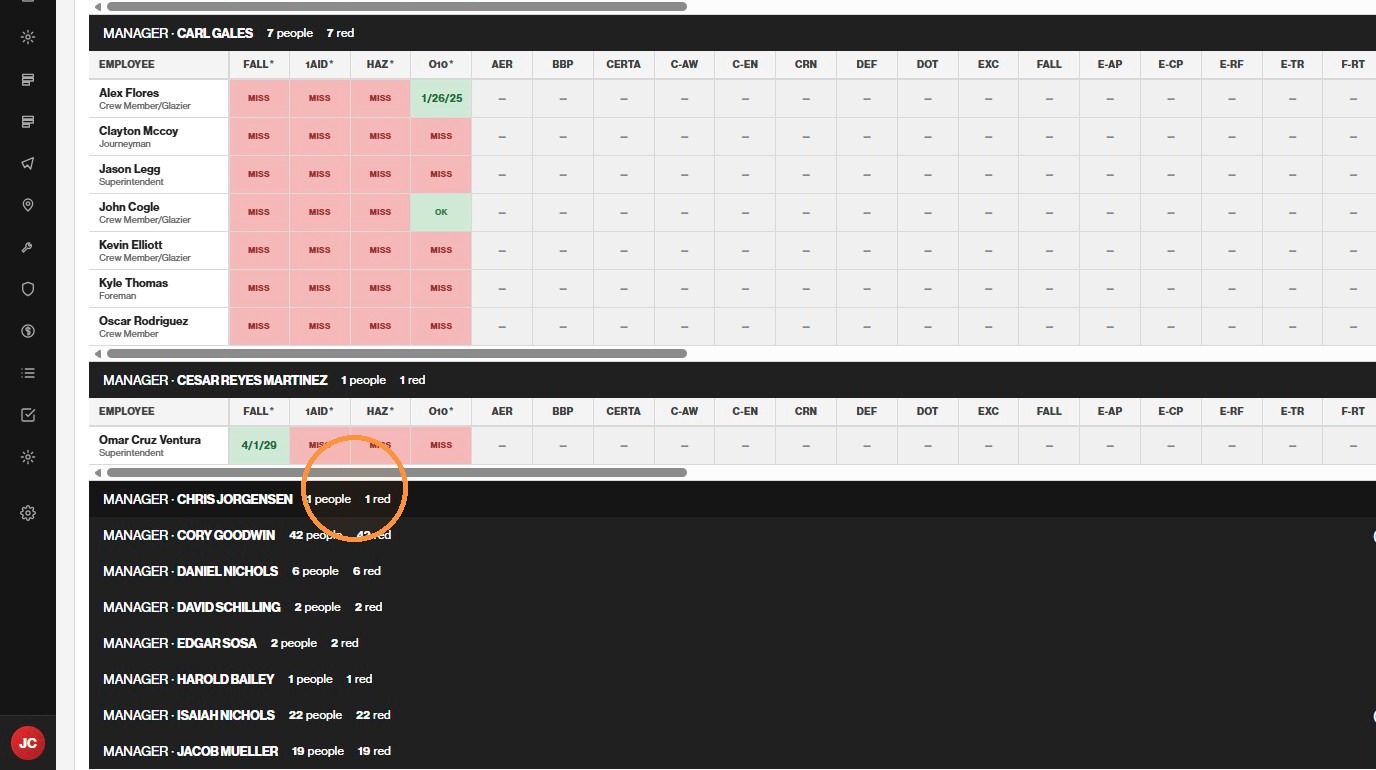
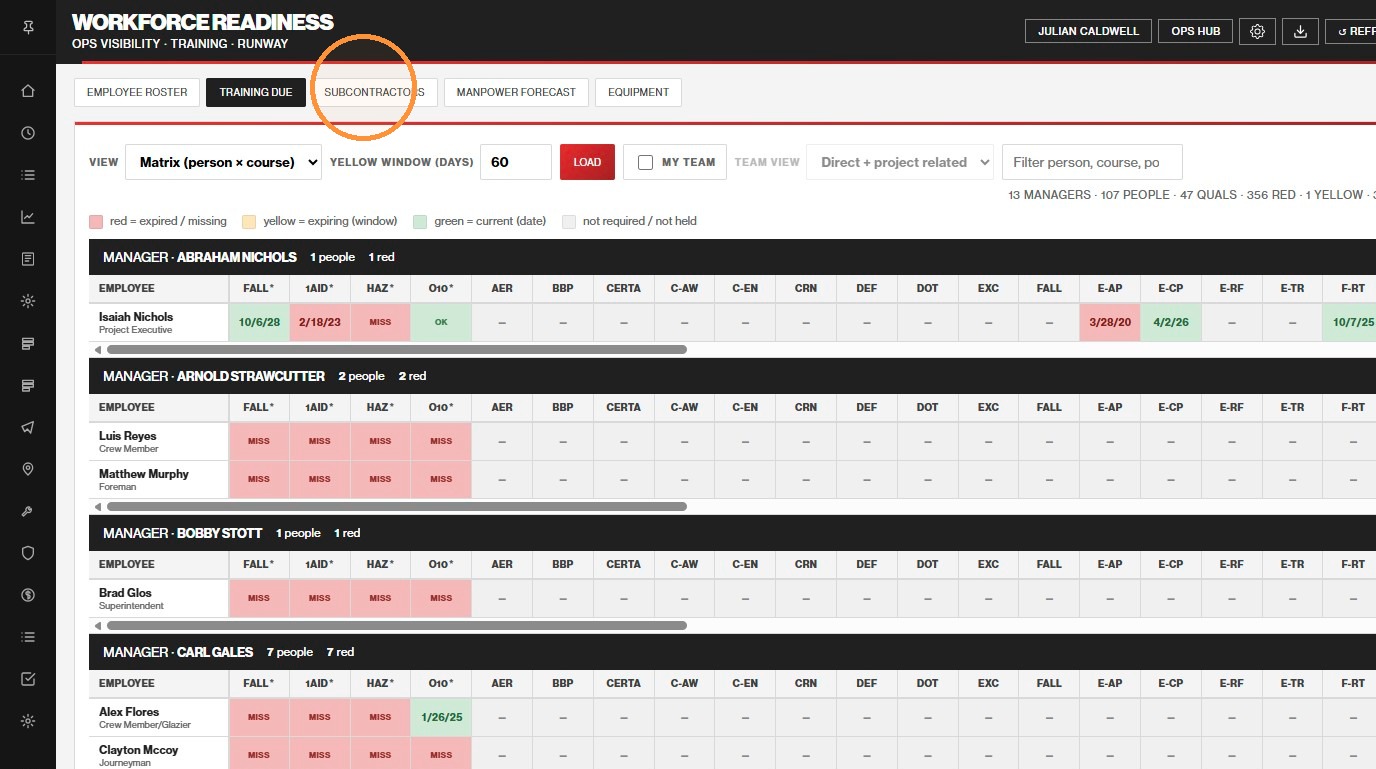
Click Training Due to see missing or expiring mandatory courses. Expand manager groups (red counts) to work the list.
13
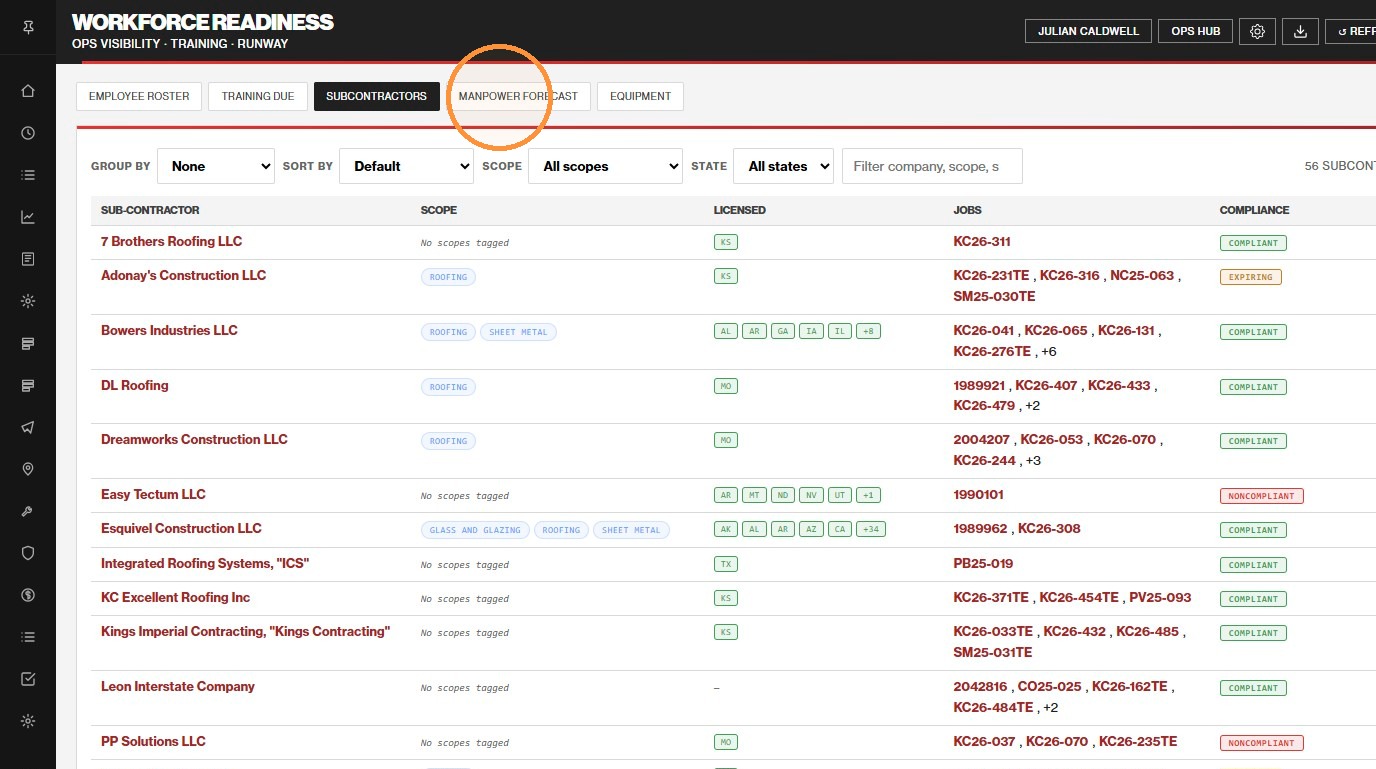
Click Subcontractors for active subcontractors, licenses, and compliance filters.
14
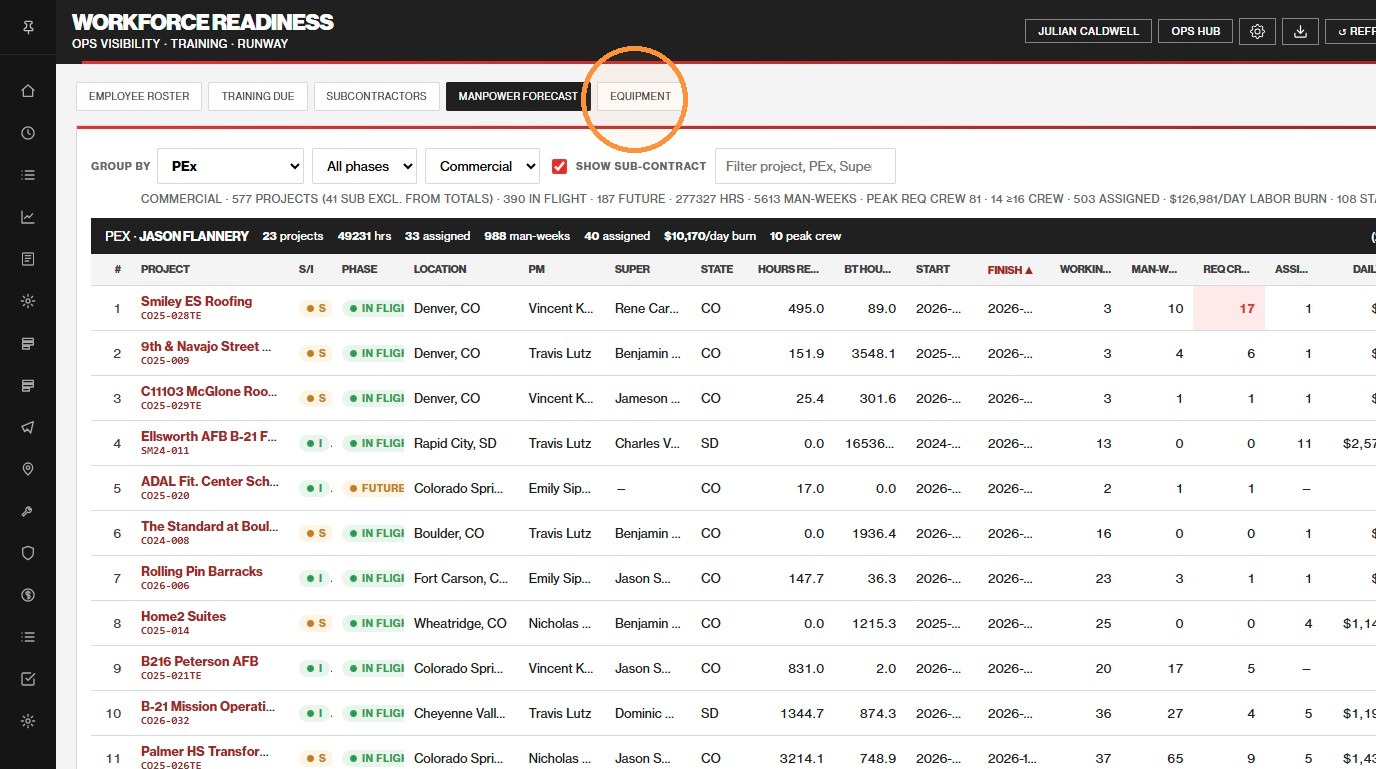
Click Manpower Forecast for ETC hours → man-weeks by project ownership.
15
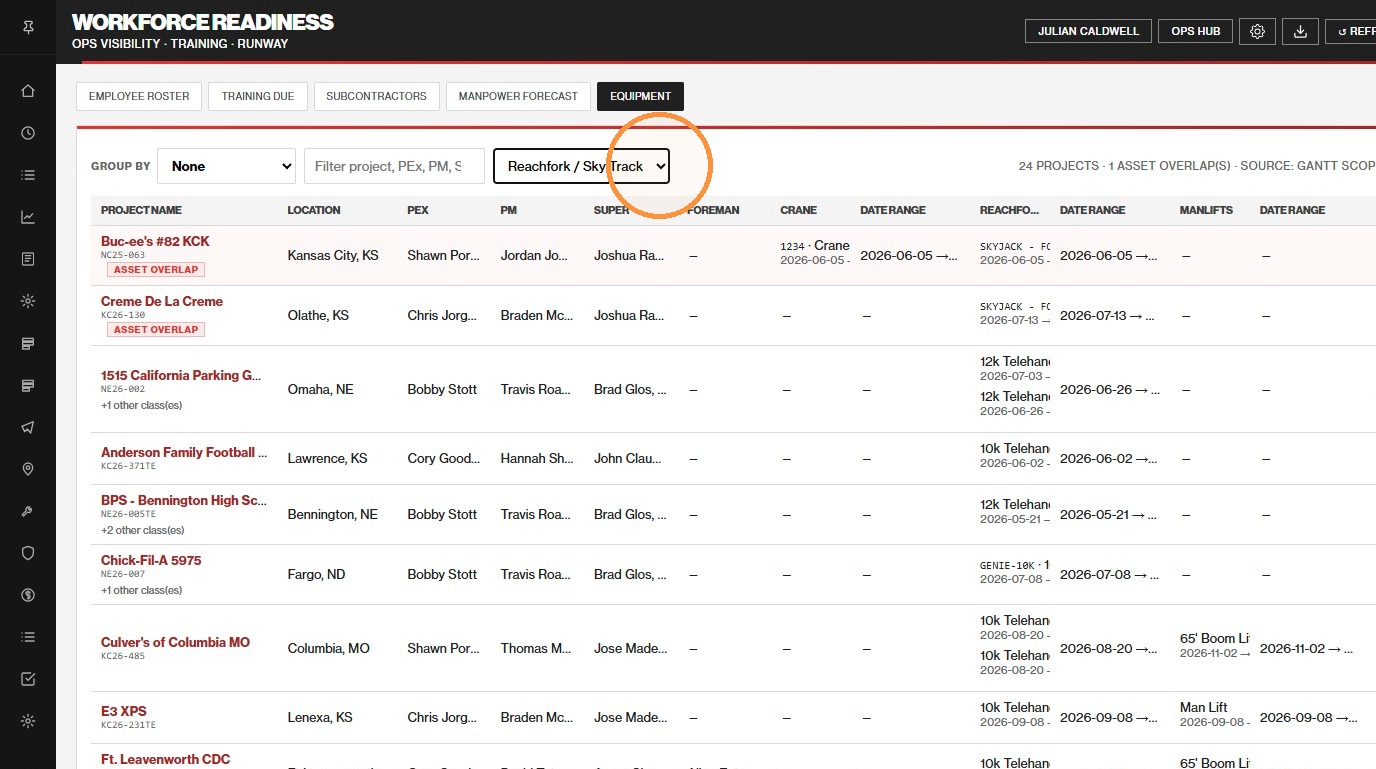
Click Equipment for crane / reachfork / manlift presence by job.
Step 12Training Due
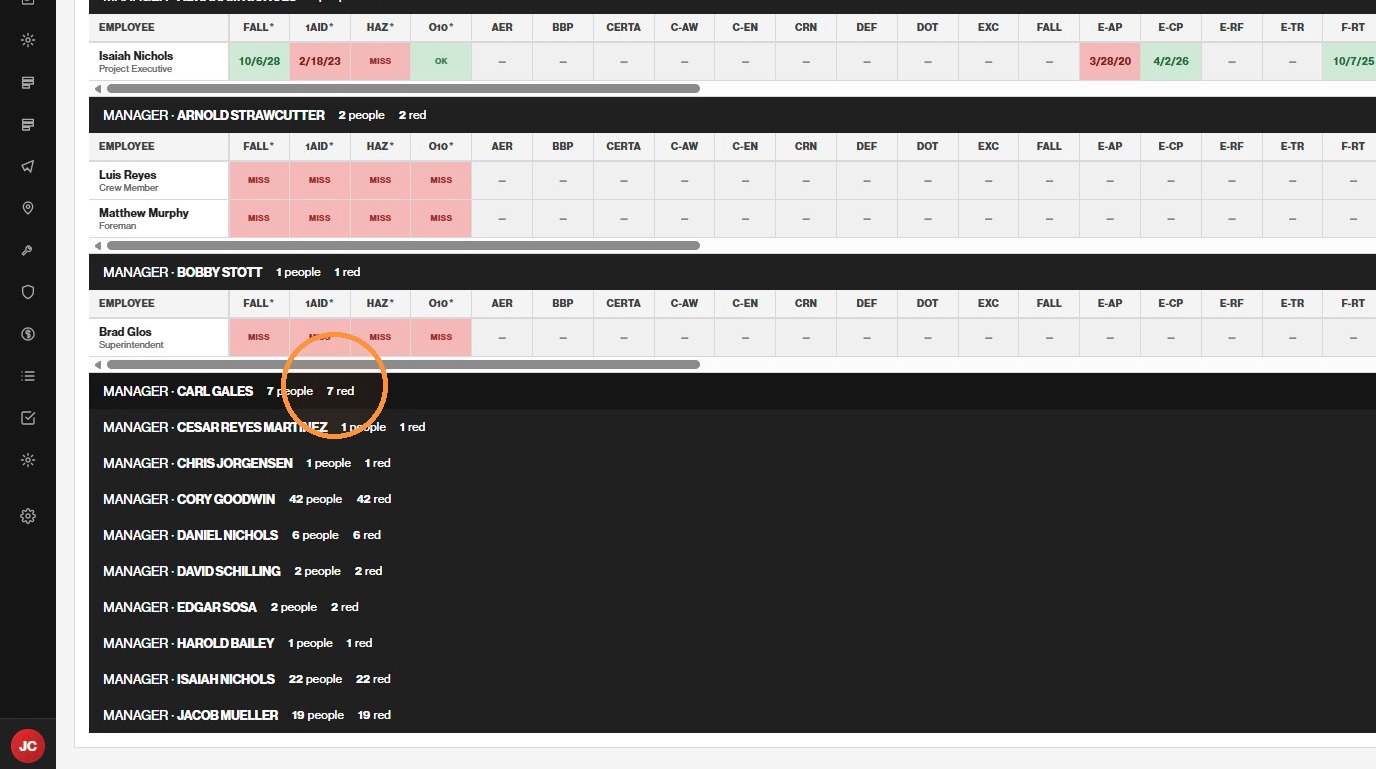
Worklist or Matrix (person × course). Red counts on manager groups show how many rows need attention.
Drill inManager groups
Click a red count (or the manager heading) to expand that group’s due / expiring rows.
ContinueWork by manager
Move through manager groups to clear training gaps for each crew owner.
ContinueExpand and review
Each group lists people and courses that are missing or expiring inside your yellow window.
Step 13Subcontractors
Filter by scope and state; search company, scope, state, or job.
Step 14Manpower Forecast
Hours = Current EAC − BT; man-weeks divide by weekly capacity (default 50). Column definitions: Manpower Forecast in this help. Group by PEx, PM, Super, State, or phase.
Step 15Equipment
See which jobs have crane, reachfork / sky track, or manlift presence, with ownership columns for planning.
Filter Equipment
Narrow the equipment board by class, then group for planning views.
16
Select Reachfork / Sky Track (or Crane / Man Lift / Forklift) from the equipment class filter.
17
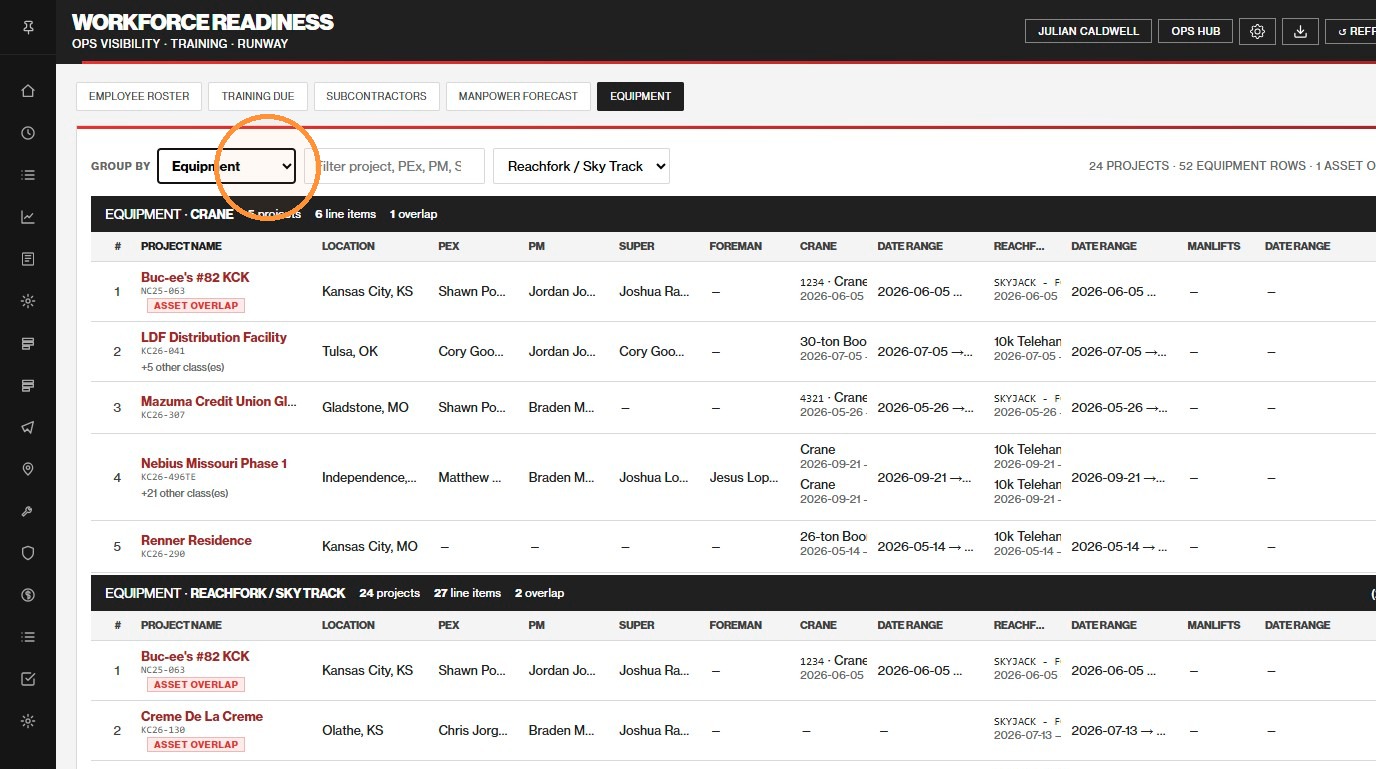
Set Group by to Equipment (or Location, State, PEx, PM, Super, Foreman, Active/Closed, or has-crane / has-reachfork / has-manlift).
Step 16Class filter
Limit the board to one equipment class when you are hunting for a specific asset type.
Step 17Group by Equipment
Stack jobs under equipment groupings for a planning snapshot; export CSV from the header for meetings.
Manpower Forecast
Column and toolbar definitions for the Manpower Forecast board. Open Manpower Forecast for the live grid; use ? Help from the boards header anytime.
Hours Remaining
Current EAC − BuilderTrend hours, floored at 0. Source label on the board: Labr Hrs EAC − BuilderTrend hours (What-If Current EAC − BT).
Working Days
Weekdays from today (or start if later) through finish — remaining runway, not the full start-to-finish calendar span.
Man-Weeks (5/10)
ceil(hours ÷ weekly capacity, default 50) — total effort; sums as portfolio backlog. It describes backlog intensity, not same-day headcount on the roof.
Req Crew
ceil(hours ÷ (working days × hours/day)) — concurrent people needed to hit finish. Highlighted red at ≥16.
Assigned
Distinct Employee Roster (ops field) people on active Job Set Up slots today. Per-job count is that job only; toolbar and group totals count each person once even if they are on more than one job. PM/office and other non-roster seats are excluded.
Daily Burn
Sum of assigned field hourly rates × the job’s hours/day (default 10) — $/day labor cost of the named crew. Visible to admins only. Salary / annual pay is excluded (shows $0/day when the only people assigned are salaried). Burn still uses all Job Set Up seats with rates, not only ops-roster people.
Stale start
Yellow row + “Stale start” badge = phase is still Future but the planned start is already past (schedule slip). Req Crew can overstate urgency until dates are re-baselined. Distinct from a genuinely hot In Flight job.
Totals & ownership
Capacity totals (hours, man-weeks, burn) count in-house (I) jobs only — Sub-Contract (S) rows are excluded from those sums when shown.
PEx / Super / PM come from Project Masters and Gantt job ownership.
Filters: Group by PEx (default), PM, Super, State, or In Flight / Future. Commercial is the default segment. Uncheck Show Sub-Contract to hide S jobs and focus on in-house demand.
Colors & Metrics
Quick reference for readiness and runway signals used across the boards. Manpower column math is under Manpower Forecast.
Training readiness
Green — all mandatory training current.
Yellow — at least one mandatory course expiring soon.
Red — missing or expired mandatory training (assigning may require a journaled override).
The Training chip shows held-current count over mandatory-required count.
Runway (Days)
Red — ≤10 days on current assignment
Yellow — 11–29 days
Green — 30+ days
CSV export: Header download exports the active tab after your current filters and grouping. Switch tabs, then export again for another board.